

Contact support
Have a question or a problem with Glowake? Write to mathias.reichen.dev@gmail.com with “Glowake” in the subject line.
Include your iPhone model, iOS version, Glowake version and the steps that led to the problem. A screenshot can help: hide any personal information that is not needed. Do not send passwords or payment details.
Set up your first morning
- Open Glowake on an iPhone running iOS 26 or later and allow alarms when prompted.
- Create or edit a series: choose its name, days, first alarm time, number of alarms and interval.
- Activate the series and check the date of the next morning displayed in the app.
Each activation applies to one morning only. Your selected days determine the next date, without automatically reactivating the series every week. The optional reminder at 9 p.m. the evening before invites you to activate it yourself.
An alarm is not ringing
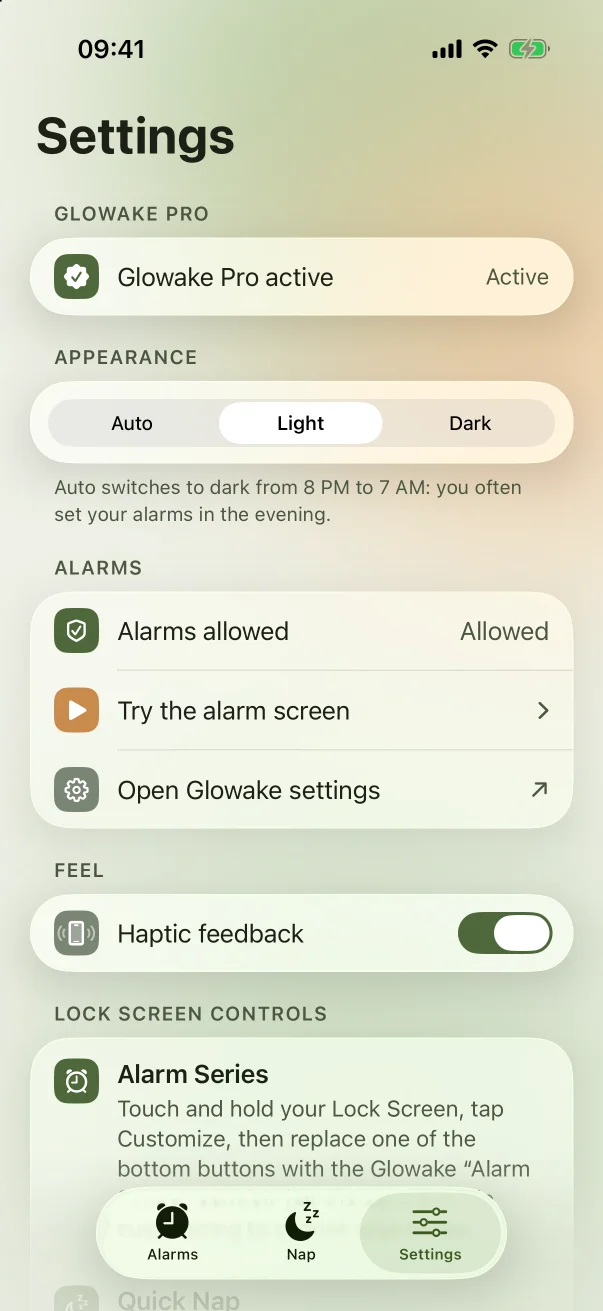
- In Glowake → Settings → Alarms, check that alarms are allowed. You can also open Glowake’s iOS settings from this section.
- Check that the series is activated for the correct date and that your iPhone is on and sufficiently charged.
- Check your iPhone’s sound and volume settings. Try a short nap to test an actual alarm on your device.
- If Glowake displays a scheduling or cancellation error, follow its message and check the session status before relying on it.
“Try the alarm screen” in settings previews the interface; it does not replace a test of the alarm sound. Glowake alarms are separate from those in the Clock app. If the problem persists, contact us with the date and time of your test.
Naps and the confirmation calculation
Choose a duration from 5 to 120 minutes, then start your nap. Glowake schedules five alarms from the outset, spaced two minutes apart, starting at the chosen end time.
The short calculation in the app lets you cancel the remaining alarms in the session. Stopping one alarm through iOS does not cancel the whole series. Check the session status in Glowake if you want to stop everything.
Lock Screen and Control Center
Controls require Glowake Pro. Open the app first and allow alarms.
- Touch and hold your Lock Screen, then choose Customize and the Lock Screen.
- Replace a control with Glowake → Alarm Series or Quick Nap.
- Choose the series to control or the nap duration, then save.
These controls are also available in Control Center. One tap activates the series or nap; a second cancels the session. If you delete a series, select a new one in the control’s configuration.
Purchases, subscriptions and refunds
Restore Pro: using the Apple Account used for the purchase, open Glowake → Settings → Restore purchases. Check your internet connection and try again if products are temporarily unavailable.
Cancel a subscription: open iOS Settings → your name → Subscriptions → Glowake, or “Manage subscription” in Glowake. Follow Apple’s instructions. Deleting the app does not cancel your subscription.
Request a refund: follow Apple’s procedure. BSAE cannot directly refund a payment collected by Apple.
The “lifetime” offer is a one-time purchase with no recurring subscription. Further details are available in our Terms of Use.
Delete your data
You can edit or delete your series in the app. To remove local data, deactivate your current sessions, then choose “Delete App” in iOS, rather than “Offload App”. Any app backups are managed separately in your Apple settings.
There is no Glowake account to delete. For messages sent to support or any privacy questions, write to mathias.reichen.dev@gmail.com. See the Privacy Policy for more details.